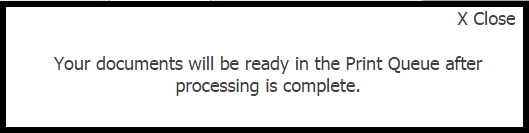
The Print Queue feature found in Document Tracking | Print Queue, allows users to track former, current, and processing print jobs. This includes any print jobs that trigger a notification such as the one seen in the image below.
The Print Queue harbors the following specifications:
● Only print jobs from the previous 5 days will be visible — all others will be deleted
● Each print job will have one of three potential statuses:
o Not Started
o In Progress
o Completed
● Each print job will have one of four potential color-coded icons to the left of the Job Name to indicate its status:
o Blue – Not Started
o Yellow – In Progress
o Green – Completed (no errors)
o Red – Completed (with errors)
|
|
Hovering the mouse over a cell in the "Status" column, with the red ball icon, will produce the following tooltip message: "A document(s) in this job failed to print. Please contact for further information." |
To change the name of a print job:
1. Click the Edit button ( ) next to the Job Name.
2. Enter the desired Job Name in the text field.
3. Click the Save button (  ) to finalize the change.
|
|
This does not change the file name (inside the zip file), the zip file, or the document name when downloaded. Download ( |
To view or print a job:
1. Find the print job that you wish to view or print.
2. Under the Status column, click either  to Download a .pdf file of the report or click
  to Open a .pdf file of the report. These options will only appear for items that have a "Completed" status.

 ) buttons are displayed, under the